IPTV setup guide for every device

Step-by-step setup for Fire TV, Android, Samsung and LG smart TVs, Apple devices, MAG boxes and computers. Most people are watching within minutes.

Before you start

You need three things

A compatible device, a home internet connection and the login we send you after your order or free trial request.

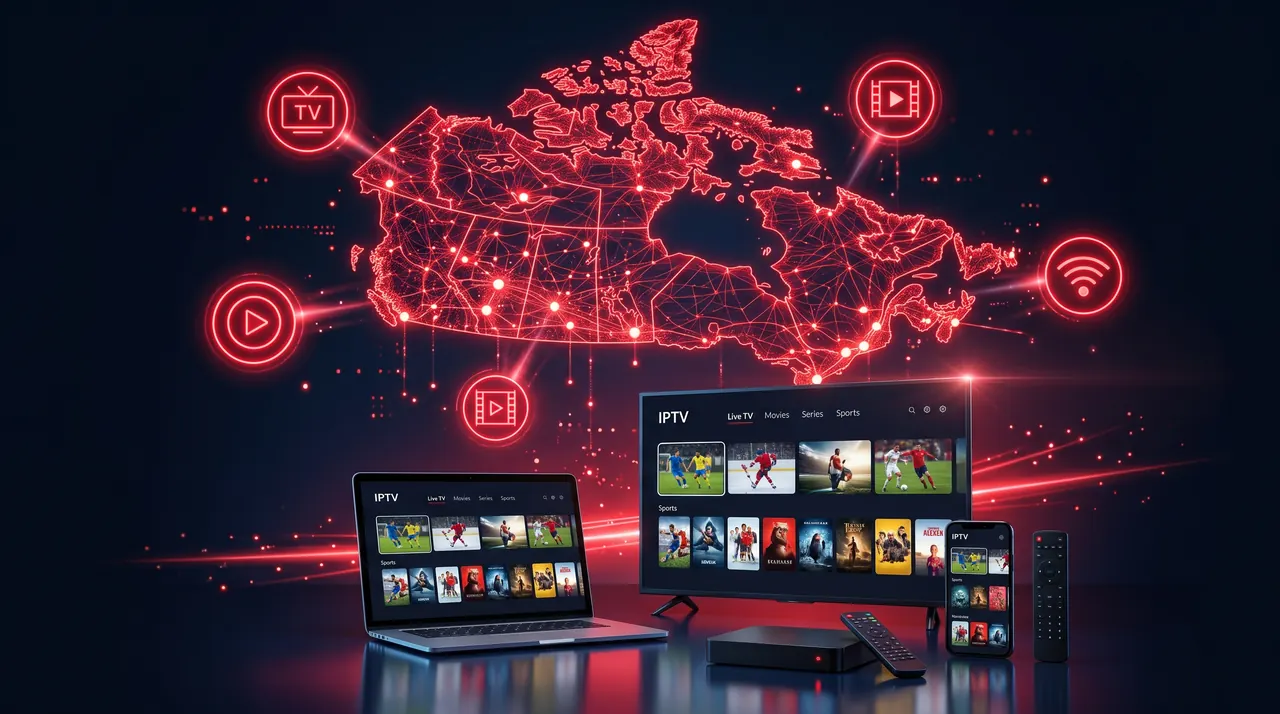
IPTV app with live TV, movies, series and sports on a smart TV, laptop, phone and streaming box

Amazon Fire TV and Fire Stick

The most popular way to watch IPTV in Canada.

  1. On the Fire TV home screen, open Find and search for an IPTV player app (for example IPTV Smarters or TiviMate).
  2. Download and open the app.
  3. Enter the login we send you: server address, username and password.
  4. Wait for the channels and the TV guide to load, then start watching.

If the app you want is not in the Amazon store, message us and we tell you how to install it.

Android TV boxes, Google TV and Android phones

Works the same on most Android devices.

  1. Open the Google Play Store and install an IPTV player app.
  2. Open the app and choose to log in with Xtream Codes or your account details.
  3. Enter the login we send you: server address, username and password.
  4. Your channels, movies and series appear in the app.

Samsung and LG smart TVs

No extra box needed on most recent models.

  1. Open the app store on your TV (Samsung Apps or LG Content Store).
  2. Install an IPTV player app that is available for your TV model.
  3. Open the app. Some apps show a device code: send it to us if asked.
  4. Enter the login we send you: server address, username and password, or let us activate it for you with your device code.

Apps available on smart TVs change often. Tell us your TV brand and model and we tell you which app to use.

Apple TV, iPhone and iPad

Install from the App Store.

  1. Open the App Store and install an IPTV player app.
  2. Open the app and add a new playlist or account.
  3. Enter the login we send you: server address, username and password.
  4. Start watching. On iPhone and iPad you can also use AirPlay to send video to your TV.

MAG boxes

Set-top boxes that use a portal address.

  1. Send us the MAC address printed on the back of the box or shown in its settings.
  2. On the box, go to Settings → Servers → Portals.
  3. Enter the portal address we send you, save, and restart the box.
  4. The channel list loads automatically after the restart.

Windows and Mac computers

Handy for testing or watching at your desk.

  1. Install a media player that supports IPTV playlists, such as VLC, or an IPTV player app for your computer.
  2. Open the playlist link or login details we send you.
  3. Choose a channel and watch.

Tips for a smooth picture

Most freezing problems come from Wi-Fi or a busy home connection, not from the device. These checks fix the majority of issues.

Get setup help on WhatsApp
  • Use a cable when you can. A wired connection is the most stable. Otherwise, use 5 GHz Wi-Fi.
  • Speed: about 25 Mbps for HD and 50 Mbps for 4K per screen watching at the same time.
  • Restart first. If a channel freezes, restart the app, then your device and your router.
  • Keep the app updated from your device's app store.
  • Still stuck? Send us a photo of the screen on WhatsApp. It is the fastest way for us to help.